
Test your CPU’s stability, sustained speed and cooling in under a minute, right in your browser. This online CPU stress test loads every thread you choose, checks every calculation for errors, watches for throttling, and gives you a plain-English verdict when it finishes. Pick a preset, press Start, and keep a temperature monitor open beside it.
- It checks the maths. Every calculation is compared with a known-correct result, so a flaky CPU shows up as errors, not just a lower score.
- It detects throttling. It compares your first stable seconds with the most recent ten and warns you when speed falls by 10% or more.
- It gives a verdict. Stable, slight slowdown, throttling suspected, uneven or errors detected, with advice for each.
- It adjusts load. Choose how many threads and how much of each core to use, and pause or resume at any time.
- It can’t read temperatures. No browser test can. Run HWiNFO or Core Temp alongside it.
How does this online CPU stress test work?
Each thread you choose runs a tight loop of integer and floating-point maths inside a Web Worker, a browser feature that runs code on a separate CPU thread. The loop is deterministic: it works through a fixed sequence of calculations that must produce exactly the same answer every time. The first answer becomes the reference, and every later batch is compared against it. A mismatch is counted as a calculation error. That’s the same basic idea Prime95 uses, which is why a clean result means more than a high score.
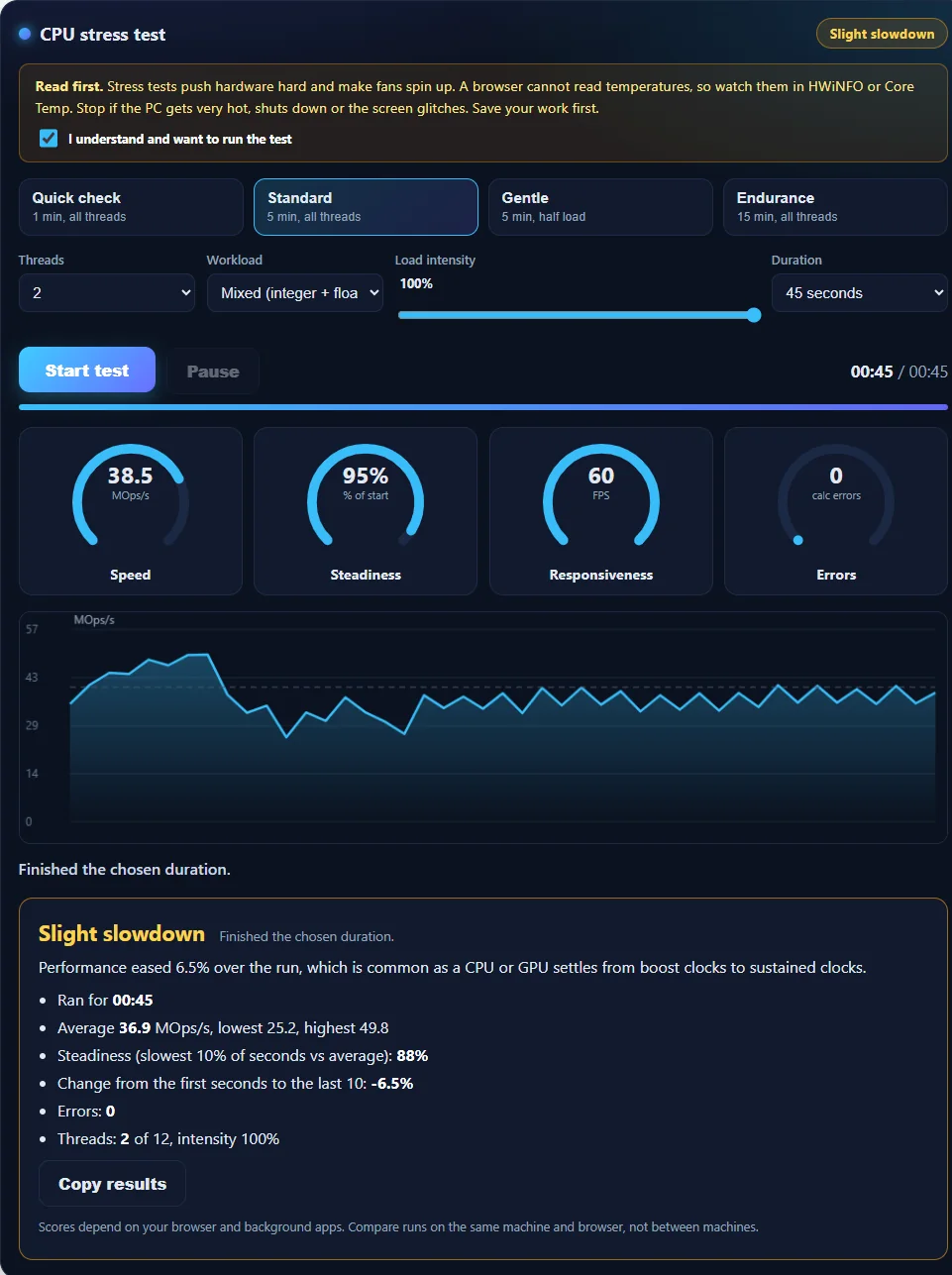
Once a second, the page adds up the work every worker completed and plots it as millions of operations per second (MOps/s). It also keeps a baseline: the average of seconds 4 to 13, after the CPU has settled from its first burst. From then on it compares the last ten seconds with that baseline. If the recent speed has fallen by 10% or more, you’ll see a throttling warning, because a sagging line while nothing else is running is the classic sign of thermal or power limits.
How to run a CPU stress test
- Close other programs and keep this tab visible. Browsers slow down background tabs, which ruins the measurement.
- Open a temperature monitor such as HWiNFO or Core Temp, and know your CPU’s limit. See safe Prime95 temperatures for how to find it.
- Read the warning and tick the box. Start stays disabled until you do.
- Choose a preset. The table below explains each one.
- Press Start test and watch the dials, the chart and your temperature monitor.
- Stop at any time. The verdict card appears as soon as the test ends, whether it finished or you stopped it.
| Preset | Threads | Intensity | Length | Use it for |
|---|---|---|---|---|
| Quick check | All | 100% | 1 minute | A fast sanity check of cooling and stability |
| Standard | All | 100% | 5 minutes | The recommended first test |
| Gentle | Half | 70% | 5 minutes | Laptops, small PCs and nervous first runs |
| Endurance | All | 100% | 15 minutes | Seeing steady-state throttling after the heatsink saturates |
What do the dials mean?
Four dials sit above the chart. Understanding them takes a minute and makes every result easier to read.
| Dial | What it shows | Healthy | Worth a closer look |
|---|---|---|---|
| Speed | Millions of operations per second across all workers. More threads and higher intensity raise it. | Settles quickly and stays level | Slides downward over minutes |
| Steadiness | The latest speed as a percentage of your baseline from the start. | 95% to 100% | Below 90%, which turns the dial amber |
| Responsiveness | How many frames per second this page can draw while the test runs. It shows whether the CPU is still keeping up with ordinary work. | About 60 FPS | Below 30 FPS means the browser is struggling |
| Errors | Calculations that gave a wrong answer. | 0 | Any number above 0 |
The responsiveness dial is worth watching because it measures what you feel. A CPU can post a high speed number while your system stutters. If the FPS drops while you run the test, try an ordinary task in another window, with this tab kept visible, and see whether your normal tasks still feel smooth.
Threads and load intensity
Two settings control how hard the test pushes.
- Threads sets how many workers run. The list goes up to the number of logical processors your browser reports, because extra threads beyond that add nothing. All threads is the worst case. One thread shows how a single core behaves.
- Load intensity sets what share of each moment a worker is busy, from 10% to 100%. At 100% a worker runs flat out. At 50% it works for half of every short time slice and rests for the other half. You can drag the slider while the test runs.
The two combine. Total load is roughly threads multiplied by intensity, so 8 threads at 50% load is about the same amount of work as 4 threads at 100%. That makes the slider useful for stepping up gradually: start at a low intensity, check temperatures, and raise it in steps. When you change the intensity during a run, the baseline restarts, so the steadiness figure compares like with like.
If you’re unsure how your cooling copes, start with the Gentle preset, watch your temperature monitor for two minutes, then move to Standard. Stop at any point where temperatures near your CPU’s limit.
How the verdict works
When a run ends, the badge at the top and the card below the chart give one of five verdicts. They follow simple, published rules, so you can see exactly why you got yours.
| Verdict | When it appears | What it usually means |
|---|---|---|
| Stable | No errors, speed within 5% of the baseline, steady throughout | The CPU held its performance for the whole run |
| Slight slowdown | Speed eased 5% to 10% | Normal as a CPU settles from boost clocks to sustained clocks |
| Throttling suspected | Speed fell 10% or more from the baseline | Heat or a power limit. Check your monitor |
| Uneven performance | The slowest 10% of seconds ran below 75% of the average | Background apps interfering. Close them and repeat |
| Errors detected | One or more wrong results | Possible instability, or interference. Repeat, then test at stock settings |
| Too short to judge | Under 30 seconds | Run at least a minute |
The steadiness figure uses the slowest 10% of seconds, not the single lowest one, so one brief dip from a background task doesn’t trigger a false alarm. The change from start to end compares the last ten seconds with the baseline from seconds 4 to 13, and it needs at least 25 seconds of data.
How to check stability properly
A stability test asks whether your PC stays smooth under heavy load, not just whether it survives. Here’s a method that works with this tool:
- Start the Standard preset at full intensity and wait about a minute for the numbers to settle.
- Use your PC normally in another window while it runs: open an app, play a video, scroll a page. Keep this tab visible, for example on a second monitor or in a split screen, because browsers slow down hidden tabs.
- Watch Responsiveness and Speed. Neither should fall sharply.
- Watch your temperature monitor for the whole run, not just the start.
- Read the verdict and repeat once to confirm it wasn’t a fluke.
If something looks wrong, repeat with fewer threads or lower intensity to find the load where it behaves. For the thorough, hours-long version of this process, read how to stress test your CPU with Prime95.
How to test at maximum load
If you want the heaviest load this tool can produce, set Threads to the maximum, Load intensity to 100% and choose the Endurance preset. Expect fans to roar and temperatures to climb. A few cautions:
- Save everything first, and close other programs.
- Plug a laptop into AC power and clear its vents.
- Don’t leave a first maximum-load run unattended.
- Stop the moment temperatures stay at your CPU’s limit, or the system shows any sign of distress.
This tool doesn’t use AVX instructions, so Prime95 will still run hotter. If your goal is the absolute worst case, use Prime95 after this test passes.
Why did my PC become unstable or shut down during the test?
The system felt slow or apps froze
At full load the test takes every thread, so other programs get less CPU time and can lag. That’s the point of the test, and modern systems handle it well. If apps hang, or Responsiveness stays under 30 FPS, the CPU is struggling. Repeat with fewer threads, and check whether anything else is hammering the CPU.
The PC shut down or restarted
The usual cause is protection. Intel describes Tjunction max as the temperature at which a processor starts reducing power, and says that if throttling can’t keep it safe the processor shuts down to prevent damage. A shutdown within a minute or two points at cooling that isn’t working properly: a loose cooler, a stopped fan or pump, blocked airflow or dried paste. A restart can also come from an unstable power supply or overclock. Stop testing and fix the cause before you try again. Prime95 errors explained and our troubleshooting guide walk through the checks.
The browser crashed or the tab reloaded
Too many workers or low memory can crash a tab. Close other tabs, try fewer threads, and test in a fresh window with extensions turned off.
Online test vs desktop tools
| Feature | This online test | Prime95 |
|---|---|---|
| Install needed | No | Download and extract |
| Loads all threads | Yes | Yes |
| Checks results for errors | Yes, deterministic result check | Yes, rounding-error check on prime-number maths |
| Detects throttling | Yes, from throughput | Not directly. Use a monitor |
| Gives a verdict | Yes | No, you read the log |
| AVX instructions | No | Yes, on supported CPUs |
| Heat and power draw | High, but lower | Very high, a worst case |
| Memory stress | Minimal | Large with Blend or Large FFTs |
| Reads temperatures | No | No (use a monitor) |
| Best use | Quick sanity check, or comparing runs | Thorough stability testing |
If the online test passes cleanly, move on to a Prime95 stress test, which is a much harder load. For a wider comparison of desktop tools, see Prime95 vs OCCT vs AIDA64 vs Cinebench.
PC stress test vs CPU stress test: what’s the difference?
A CPU stress test loads only the processor. A whole-PC stress test also loads the graphics card, memory and storage, and is how you check that the power supply copes with everything running at once. To test graphics here, use the online GPU stress test, and run the two one after the other, not together, unless you know your power supply can handle both.
What is the best CPU stress test?
It depends on what you want to find out. A good CPU stress test should load every core hard, catch wrong results, and ideally let you monitor temperature and power. No single tool is best at everything:
- A quick check with nothing to install: this online test.
- The classic worst case and error detection: Prime95.
- A broader suite with sensor logging: OCCT or AIDA64.
- A benchmark to compare speed: Cinebench.
Most people who overclock use two or more, because different loads expose different problems.
Browsers, phones and system requirements
The test runs in current versions of Chrome, Edge, Firefox and Safari on Windows, macOS, Linux and Android or iOS, as long as the browser supports Web Workers. It works with CPUs from any manufacturer, because the browser handles the hardware.
- Thread count: the tool uses the number of logical processors your browser reports. Some browsers and privacy settings limit or round that number, so the list may be shorter than your real thread count.
- Background tabs: browsers throttle hidden tabs, so keep this one in the foreground. The tool warns you if it loses focus.
- Power saving: battery saver and efficiency modes slow the browser. Plug in a laptop and turn them off for a fair test.
- Different browsers, different scores: each JavaScript engine is different, so compare runs in the same browser.
Phones and tablets have very little cooling. A full-load test can make the device hot within minutes and force heavy throttling. Use the Gentle preset or a lower intensity, keep the device off soft surfaces, and stop if it feels hot to hold.
Comparing runs and sharing results
Press Copy results on the verdict card to copy a one-line summary of the run: preset, length, average and lowest speed, change over time, errors and verdict. Paste it into a forum post or support ticket.
The tool also remembers your last run for each setup (threads, workload and intensity) in your browser’s local storage, and shows the change against it on the next run. That makes it handy for before-and-after tests: run once, change your cooler or a BIOS setting, run again with the same preset, and read the percentage difference. Nothing is sent to a server, and you can clear it by clearing the site’s data in your browser.
Troubleshooting the tool
The Start button is greyed out
Tick the “I understand” box. Start stays disabled until you do.
Scores change a lot between runs
Background apps, other tabs, power mode and the CPU’s boost behaviour all affect throughput. Close other programs, plug in, and repeat. A few percent of variation is normal.
The chart shows one big dip
One dip is usually another app briefly using the CPU. A repeating or growing dip points to throttling.
“Your browser would not start that many workers”
Some locked-down browsers or systems limit the number of workers. Choose fewer threads.
The responsiveness dial reads 0
The page can’t draw frames while the tab is hidden. Bring it to the front.
Privacy
The test itself runs entirely in your browser, and its results aren’t sent to us. Like most websites, prime95.net also uses analytics and advertising scripts as described in the privacy policy, but those don’t see your test results.
Frequently asked questions
Can a website really stress test my CPU?
Yes. Web Workers let a page run heavy computation on every CPU thread. It can’t match a native tool’s instruction mix, but it fully loads the cores.
How long should I run an online CPU stress test?
One minute catches obvious problems, and five minutes is a good standard test. Use the Endurance preset (15 minutes) to see how performance holds once the heatsink is saturated.
How many threads should I test?
Use all threads for a worst-case check, and fewer to see how a single core or a few cores behave. The tool lists up to the number of logical processors your browser reports.
What does “throttling suspected” mean?
The speed fell 10% or more from the early baseline. With nothing else running, that usually means heat or a power limit. Check your temperatures and clocks in a monitoring tool.
What does an error mean in this test?
A calculation gave a different answer from the reference for identical work. That can indicate an unstable CPU, but interference can cause it too. Repeat once, then test at stock settings with Prime95.
Why can’t it show my CPU temperature?
Browsers don’t expose hardware sensors for security and privacy reasons. Use HWiNFO or Core Temp alongside the test.
Is it safe to stress test my CPU?
A properly cooled PC should handle it, but stress tests are heavy by design. Save your work, close other programs, use AC power on a laptop and stop if the PC gets very hot or shuts down.
Why does my score differ from someone else’s?
Scores depend on the browser, its version, other running apps and your CPU. Compare runs on the same machine in the same browser.
Is this a replacement for Prime95?
No. It’s a lighter, quicker check. Prime95 uses AVX and tests memory much harder, so it finds problems this test can miss.
Can I run it on a phone or tablet?
Yes, but phones have little cooling. Use the Gentle preset or lower the intensity, and stop if the device gets hot.
Does this tool store or send my data?
The test runs entirely in your browser and results aren’t uploaded. It saves your last run for each setup in your browser’s local storage so it can show the difference next time. The site itself uses analytics and ads, described in the privacy policy.
Why is my PC lagging during the test?
The test uses every thread you choose, so other programs get less CPU time. Lower the thread count or intensity if you need to keep working.