
Stress test your graphics card from your browser. This online GPU stress test runs a heavy WebGL shader at a fixed workload, tracks throughput and frame time, checks that identical work always produces identical output, and gives you a plain-English verdict. It’s a fast way to spot throttling, instability and driver resets before you reach for a native tool like FurMark or 3DMark.
- Fixed workload: it calibrates once, then holds the load constant, so any change in speed comes from the hardware, not the test.
- Output check: every two seconds it renders a tiny image with fixed inputs and compares the result, to catch inconsistent output.
- Verdict: stable, slight slowdown, throttling suspected, uneven or errors detected, with advice for each.
- No sensors: browsers can’t read GPU temperature, clocks, power or fans. Use GPU-Z or HWiNFO beside it.
How does this online GPU stress test work?
The page draws a full-screen shader, a small program that runs on the GPU, which loops through trigonometric maths for every pixel. Because the work is per pixel, the cost scales with the number of pixels and the number of loop iterations. That’s why the main score is shown as millions of pixel-iterations per second (Mpix-iter/s).
Modern GPUs finish a single pass so quickly that one pass per frame would barely tax them. So the tool first calibrates. For about ninety frames it measures how long a frame’s work takes, forcing the GPU to finish by reading back a single pixel, and increases or decreases the number of passes per frame until the GPU is busy for the share of each frame you chose with the intensity setting. Then it freezes that number for the rest of the run.
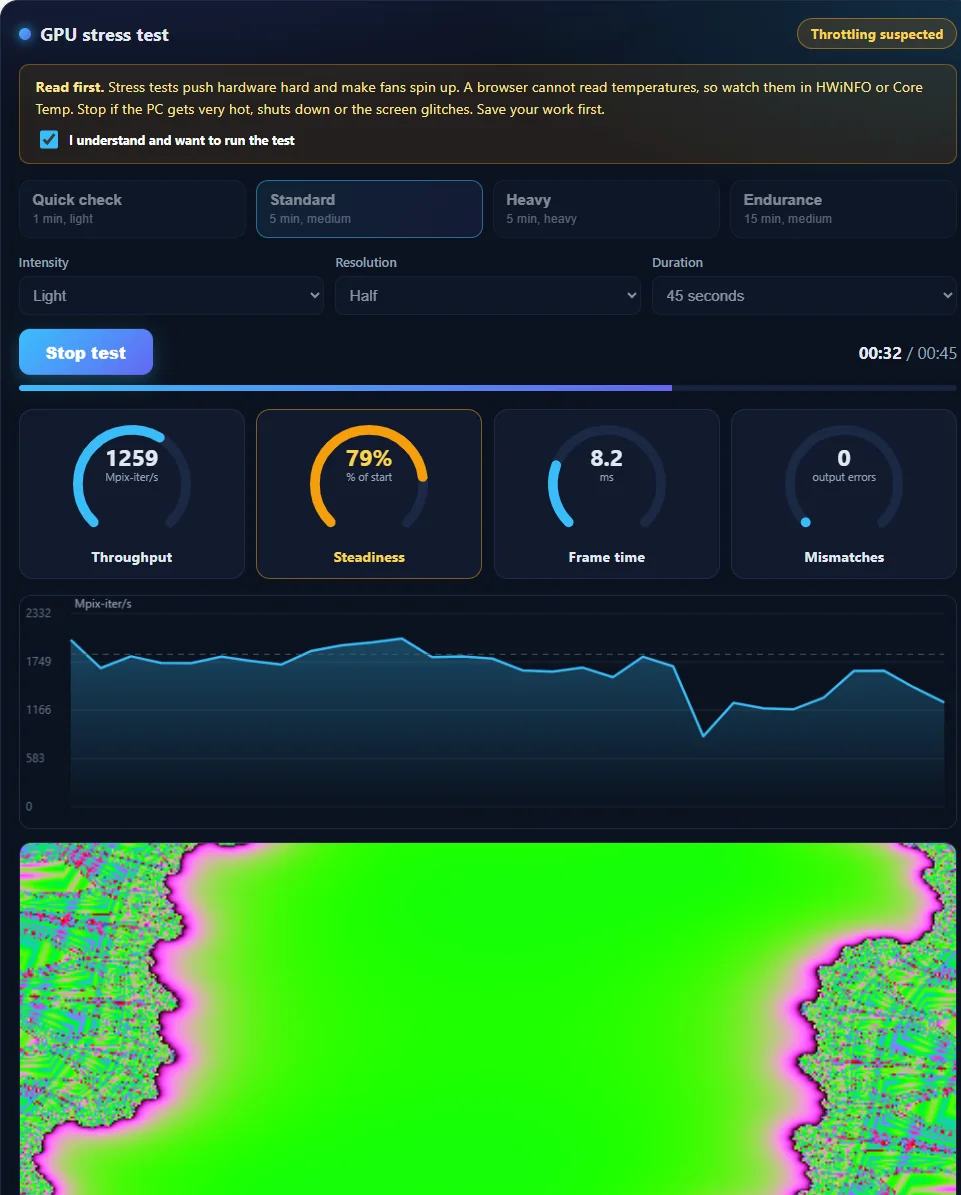
Freezing the workload is the key design choice. A test that changes its load from moment to moment can’t tell you whether the hardware slowed down. With a fixed workload, a fall in throughput or a rise in frame time is a clean signal of throttling or of another program competing for the GPU.
The second check is correctness. Every two seconds, the tool draws the same shader into a tiny 16 by 16 pixel image with fixed inputs, reads the pixels back and combines them into one number. The first number is the reference, and any later difference counts as a mismatch. On healthy hardware and a stable driver, identical inputs should always give identical output, so a mismatch is worth investigating.
How to run a GPU stress test
- Close other graphics-heavy programs such as games, video editors and other browser tabs with video or 3D content. Keep this tab visible.
- Open a GPU monitor, such as GPU-Z or HWiNFO, to watch temperature, clocks, power and fan speed.
- Read the warning and tick the box. Start stays disabled until you do.
- Choose a preset. The table below explains them.
- Press Start test. The first few seconds are calibration, shown as a Calibrating badge.
- Watch the dials, the chart and the picture. Stop immediately if you see flickering, odd artifacts, a black screen or very high temperatures.
| Preset | Intensity | Resolution | Length | Use it for |
|---|---|---|---|---|
| Quick check | Light | Half | 1 minute | A fast sanity check, or weaker and integrated GPUs |
| Standard | Medium | Native | 5 minutes | The recommended first test |
| Heavy | Heavy | Native | 5 minutes | Stronger discrete GPUs with good cooling |
| Endurance | Medium | Native | 15 minutes | Seeing steady-state throttling after the cooler saturates |
What do the dials mean?
| Dial | What it shows | Healthy | Worth a closer look |
|---|---|---|---|
| Throughput | Millions of pixel-iterations per second at the fixed workload. | Settles and stays level | Slides downward over minutes |
| Steadiness | The latest throughput as a percentage of your baseline. | 95% to 100% | Below 90%, which turns the dial amber |
| Frame time | How long the fixed workload takes per frame, in milliseconds. | Level and below the target for your intensity | Rising over time at a fixed workload |
| Mismatches | Times the output check gave a different answer for identical work. | 0 | Any number above 0 |
Frame time and throughput are two views of the same thing. Because the workload is fixed, a frame that takes longer means lower throughput. Watching both makes a slow drift easy to spot.
Intensity and resolution
The intensity setting chooses how long you want each frame to keep the GPU busy, and the tool works out how many passes achieve that on your hardware.
| Intensity | GPU busy per frame | Effect |
|---|---|---|
| Light | about 6 ms | Gentle. Leaves the GPU idle part of each frame at 60 FPS |
| Medium | about 10 ms | A solid load with headroom |
| Heavy | about 14 ms | Close to keeping the GPU busy at 60 FPS |
| Extreme | about 30 ms | Keeps the GPU busy for most of every frame, the closest to a sustained maximum |
Resolution sets the size of the canvas: half, native or 1.5 times. More pixels mean more work per pass, and the calibration compensates by using fewer passes, so what changes is mainly how memory and the pixel pipeline are exercised. Start lower on laptops and integrated graphics. If a single frame ever takes more than a second and a half, the tool stops and tells you the intensity is too heavy for the GPU.
How the verdict works
| Verdict | When it appears | What it usually means |
|---|---|---|
| Stable | No mismatches, throughput within 5% of the baseline | The GPU held its performance for the whole run |
| Slight slowdown | Throughput eased 5% to 10% | Normal as a GPU settles from boost clocks |
| Throttling suspected | Throughput fell 10% or more from the baseline | Heat, a power limit, or another program using the GPU |
| Uneven performance | The slowest 10% of seconds ran below 75% of the average | Other apps competing for the GPU. Close them and repeat |
| Errors detected | One or more mismatches | Possible instability, or a driver issue. Repeat and test with a native tool |
| Too short to judge | Under 30 seconds | Run at least a minute |
The baseline is the average of seconds 4 to 13 after calibration. The change from start to end compares the last ten seconds with that baseline, and needs at least 25 seconds of data.
Which GPU does the test use?
It uses whichever GPU your browser picks for WebGL. On a desktop with one graphics card, that’s the card. On a laptop with two GPUs, it’s often the integrated one unless you tell Windows to use the high-performance GPU for your browser. The tool requests the high-performance GPU, but the operating system decides. The page shows the GPU name during a run when the browser exposes it, so you can confirm what’s being tested.
How to make Windows use your dedicated GPU
- Open Settings, System, Display, Graphics.
- Add your browser (Chrome, Edge or Firefox) to the list.
- Choose Options, select High performance, save, and restart the browser.
Artifacts, black screens and driver resets
Watch the picture as well as the dials. A healthy run shows a smooth, evolving pattern. Warning signs:
- Flickering, tearing or random coloured blocks: can point to an unstable overclock or overheating memory.
- A black screen or brief signal loss: often a driver timeout. Windows may restart the driver, and the browser may report a lost graphics context.
- “The graphics context was lost”: the tool shows this message if the browser reports the GPU or driver reset. It’s a strong sign of instability or a driver timeout.
- Mismatches climbing: repeated inconsistent output for identical work.
If you see any of these, stop, lower the intensity or resolution, and check temperatures and drivers. If a stock GPU still shows them, test with a native tool and consider checking the card.
What a WebGL test can’t do
A browser can’t read GPU temperature, clock speed, power draw or fan speed, so a monitoring tool is essential. WebGL also doesn’t exercise ray tracing, tensor cores or the full video memory capacity the way native tools do. Think of this test as a fast sanity check: it can reveal throttling and gross instability, but a pass doesn’t prove the card is ready for a demanding game at high settings.
Graphics cards can draw a lot of power, and stress testing can expose a weak power supply. Don’t run a heavy CPU test and a heavy GPU test at the same time unless you know your supply can cope. Run them one after the other.
Online test vs native GPU tools
| Feature | This online test | Native tools (FurMark, 3DMark, Unigine) |
|---|---|---|
| Install needed | No | Yes |
| Fixed, repeatable load | Yes | Varies by tool |
| Checks output for errors | Yes, fixed-input check | Varies. Visual artifact checks are common |
| Detects throttling | Yes, from throughput | Often shown with sensor graphs |
| Gives a verdict | Yes | Usually a score or pass/fail |
| Reads temperature and power | No | Often yes, or paired with a monitor |
| Ray tracing and tensor workloads | No | Some do |
| Best use | Quick sanity check, or comparing runs | Thorough testing and benchmarking |
For the CPU side, see the online CPU stress test and our guide to stress testing with Prime95.
Laptops, phones and system requirements
- Browsers: current Chrome, Edge, Firefox and Safari with WebGL enabled. If WebGL is off, the tool tells you.
- Laptops: use AC power, clear the vents and start with the Quick check preset. Laptops reach thermal limits quickly.
- Integrated graphics: they run the test, but use Light intensity and half resolution first.
- Phones and tablets: they have very little cooling. Use Light, keep the device off soft surfaces and stop if it feels hot.
- Hardware acceleration: make sure it’s on in your browser settings, or WebGL may fall back to slow software rendering.
Comparing runs and sharing results
Press Copy results on the verdict card for a one-line summary: preset, length, average and lowest throughput, change over time, errors and verdict. The tool also remembers your last run for each intensity and resolution in your browser’s local storage, and shows the change against it next time, which is ideal for before-and-after tests such as a new fan curve or a driver update. Nothing is sent to a server, and clearing the site’s data in your browser removes it.
Troubleshooting the tool
“WebGL is not available”
Your browser or graphics driver has WebGL disabled or blocked. Enable hardware acceleration in the browser settings, update your graphics driver, and try again.
The test uses my integrated GPU
Set your browser to use the high-performance GPU in Windows graphics settings, as shown above, then restart the browser.
“A single frame took over 1.5 seconds”
The intensity is too heavy for this GPU. Choose a lower intensity or a lower resolution.
The screen flickered or the browser reset
Stop testing. That can mean the driver timed out or the GPU is unstable. Lower the intensity, update drivers, and check temperatures.
Scores vary between runs
Browser, driver, power mode and other apps all affect results. Compare runs on the same machine in the same browser.
Privacy
The test runs entirely in your browser, and its results aren’t sent to us. The page may show your GPU’s name to you when your browser exposes it, but it isn’t stored. Like most websites, prime95.net uses analytics and advertising scripts as described in the privacy policy, but those don’t see your test results.
Frequently asked questions
Does the online GPU stress test use my graphics card or integrated graphics?
It uses whichever GPU your browser picks for WebGL. On laptops with two GPUs, that’s often the integrated one unless the browser is set to use the high-performance GPU in Windows graphics settings.
Why can’t it show GPU temperature?
Browsers don’t expose hardware sensors for privacy and security reasons. Use GPU-Z, HWiNFO or your vendor’s software to watch temperature.
What does a mismatch mean?
The same input produced a different output. That can indicate overheating or instability, but run a native test to confirm before drawing conclusions.
What does “throttling suspected” mean?
Throughput fell 10% or more from the early baseline at a fixed workload. That usually means heat, a power limit, or another program using the GPU. Check temperatures and clocks.
How long should I run it?
One minute catches obvious problems, and five minutes is a good standard test. Use Endurance (15 minutes) to see steady-state behaviour. Use a native tool for a serious burn-in.
Is this the same as FurMark?
No. FurMark is a native tool with much heavier loads and direct hardware monitoring. This is a lighter, browser-based check for quick sanity testing.
Can a GPU stress test damage my graphics card?
A healthy, well-cooled GPU is designed to throttle and protect itself, but stress tests are heavy by design. Start with a low intensity, watch temperatures and stop if you see artifacts or very high temperatures.
Why does my screen flicker during the test?
Flickering can be a driver timeout, an unstable overclock or overheating. Stop the test, lower the intensity, update drivers and check temperatures.
Is my data sent anywhere?
The test runs in your browser and results aren’t uploaded. It saves your last run for each setup in local storage so it can show the difference next time. The site itself uses analytics and ads, described in the privacy policy.
Does it work on integrated graphics?
Yes. Use Light intensity and half resolution first, because integrated GPUs are much slower than discrete cards.